Roblox voice chat guide
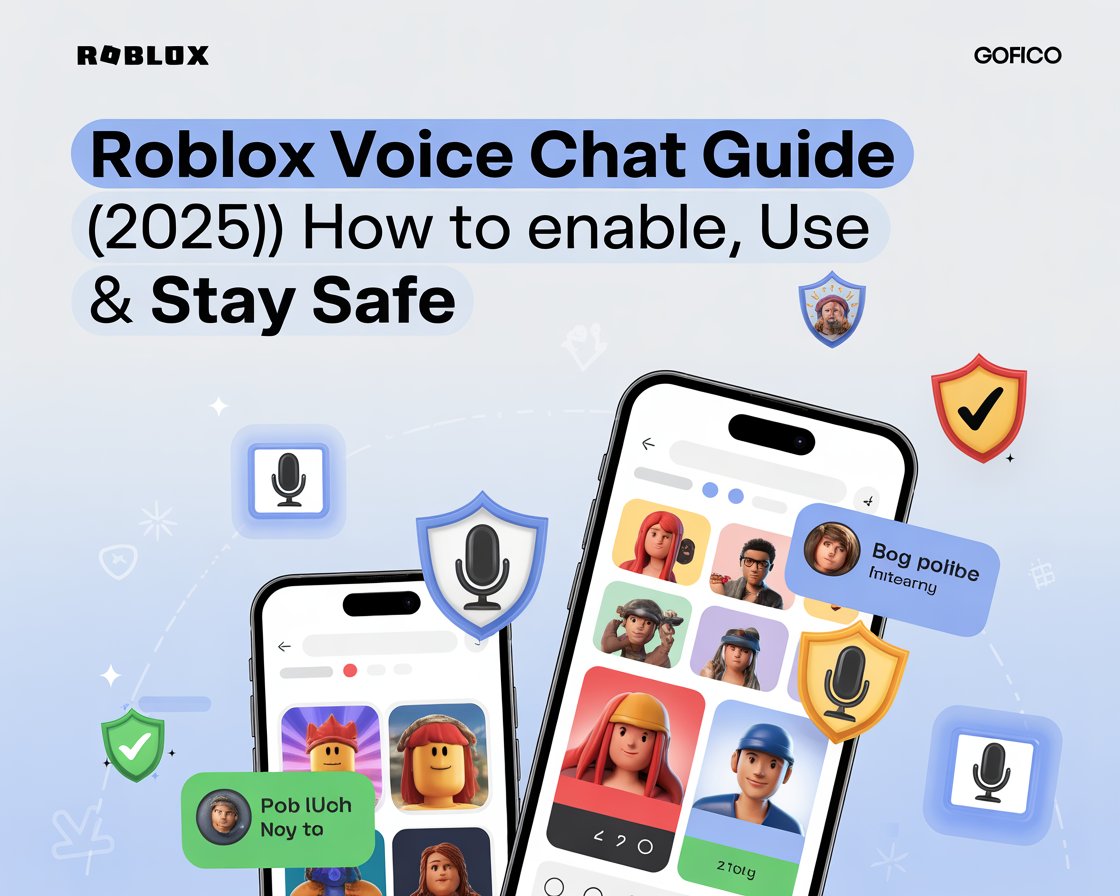
This Roblox voice chat guide is created for players who want to talk with friends and teammates directly inside Roblox games. While text chat has always been part of Roblox, voice chat (spatial voice) has become increasingly popular. Therefore, knowing how to enable and use it correctly is important for new and returning players.
At MrPlayer, we break down Roblox features in a simple way so beginners can enjoy the platform without confusion.
🧠 What Is Roblox Voice Chat?
Roblox voice chat allows players to communicate using their microphone instead of typing messages. In addition, it supports spatial voice, meaning players sound closer or farther away based on their in-game position.
According to the official Roblox support page, voice chat is designed to improve teamwork and social interaction (outbound link).
✅ Requirements to Use Roblox Voice Chat
Before enabling voice chat, you must meet these conditions:
- Age 13+
- Age verified Roblox account
- A working microphone
- Voice chat–supported game
If any requirement is missing, voice chat will not appear.
🛠️ How to Enable Voice Chat on Roblox
Step 1: Verify Your Age
First, go to Account Settings → Account Info and complete age verification.
Step 2: Turn On Voice Chat
Next:
- Open Settings
- Go to Privacy
- Enable Voice Chat
Once enabled, restart Roblox to apply changes.
Step 3: Join a Supported Game
Not all games support voice chat. However, many popular Roblox games now include it by default.
🎮 How Voice Chat Works in Games
When voice chat is active:
- A mic icon appears above players
- Nearby players can hear you
- Distance affects sound volume
As a result, communication feels more natural and realistic.
💡 Tips for Using Roblox Voice Chat Safely
Although voice chat is fun, safety matters.
Therefore, always:
- Mute toxic players
- Avoid sharing personal information
- Use private servers with friends
If you’re new to Roblox, read our Roblox Private Server Guide → /roblox-private-server-guide (internal link).
❌ Common Voice Chat Problems
Players often face:
- Voice chat option missing
- Microphone not detected
- Echo or low volume
Most issues are fixed by checking device permissions and Roblox settings.
🔗 Helpful Guides on MrPlayer
You may also like:
- Roblox Beginner Guide →
/roblox-beginner-guide - Call of Duty Mobile Beginner Guide →
/cod-mobile-beginner-guide - Free Fire MAX Beginner Guide →
/free-fire-max-beginner-guide
🏁 Final Thoughts
This Roblox voice chat guide shows that enabling voice chat is simple once requirements are met. If used responsibly, voice chat can make Roblox games more fun, social, and immersive.
For more Roblox guides, mobile game tips, and walkthroughs, keep visiting MrPlayer.xyz.